
The Linux operating system is great. Not only because it is free, but also because it gives you easy access to a huge library of programs. I am talking about the software repository that can be found in most major Linux distributions.
Downloading software from the repository is a piece of cake. In the case of Debian and Debian-based systems, all we have to do is open a terminal window and run
that sounds perfect, no?
While it is easy to install and run software using the distribution’s command line tools, there can be some challenges.
cluttered systems
In fact, it is so easy to install a program, that we might not think twice installing this and that and the other while trying to find what works best. Uninstalling those programs is not impossible, but it is rarely done. We keep them around in case we want to use that command again in the future. After a while, those installations pile up, our hard drive becomes full, and our system becomes sluggish, taking too long to boot up and using too much memory.
uncomfortable transitions
At this point, it would be best to start using a new installation of our favorite operating system. But it is not something we look forward to. The old system already has all the tweaks and programs we like. Restoring those in the new system is time-consuming and we are prone to forget some important ones on the way.
limited reach
Some other times we might be looking for a specific program. While most major software can be found in a distribution’s repository, some smaller programs might not. And some others that used to be included might get removed in newer distributions, making transitioning to a new system even more unpredictable.
delayed access
Finally, some Linux distributions such as Debian are known to be making the latest versions of their programs available, while others such as Ubuntu only provide the latest version after extended testing for stability. That can be frustrating if the latest version has new features or improvements we want to use, but we cannot access it from our current operating system.
an unconventional alternative
Most people interested in technology nowadays have heard about Docker. In short, Docker is an application that uses some clever tricks to run another operating system… within your operating system!
So, although it is not primarily designed for it, Docker might offer an alternative that tackles many of the challenges mentioned above.
Once we have Docker running on our system, we can run commands such as this one:
docker run --rm ubuntu lsThis will download the necessary files to run the Ubuntu operating system on our computer, and then proceed to list the files of that system by running the
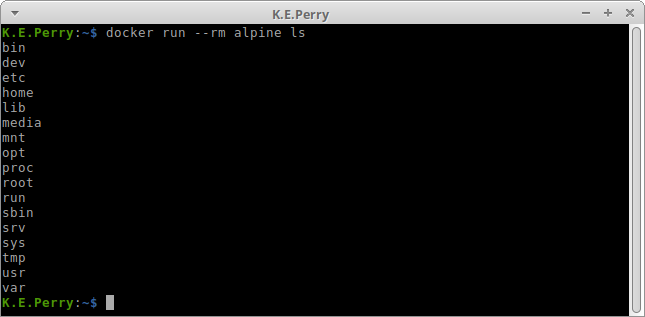
docker run --rm alpine lsSame with before but this time it will download and run the Alpine operating system.
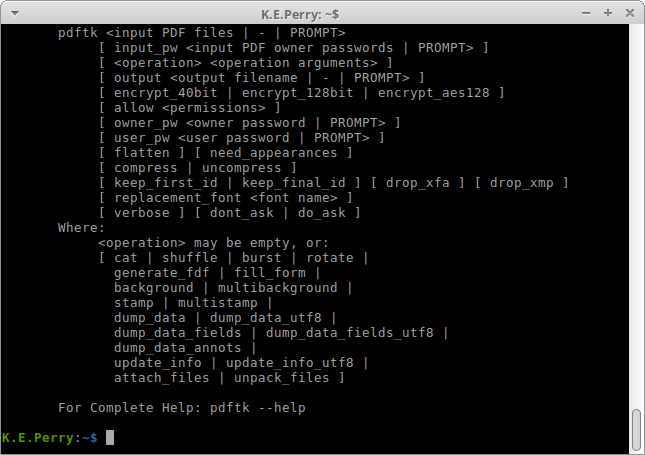
But what if we want to run a command that does not come preinstalled? In that case, we can install it first.
docker run --rm ubuntu sh -c "apt-get update ; apt-get install --no-install-recommends -y pdftk ; pdftk"We use
now we are getting somewhere
We were able to run a command in our system without installing it, but it is not enough. Most commands become useful when we use them to interact with other files.
But all of our files are still in our filesystem, not the Docker filesystem we peeked at before. Wouldn’t it be great if there was an easy way for the Docker filesystem to see our files?
Well, that is what volumes are for.
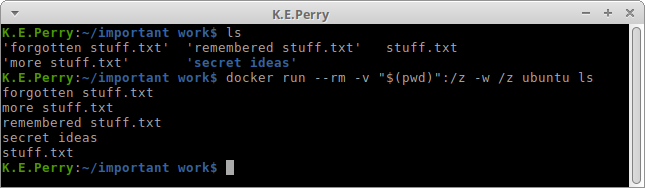
docker run --rm -v "$(pwd)":/z -w /z ubuntu lsThis is a similar command to the one we used before, but with the addition of the extremely confusing part in the middle. Let’s break it down.
The addition of these two options allow us to run a command inside our Docker system which has access to all our files.
putting it all together
By combining what we have learned so far, we can write the following command.
docker run --rm -v "$(pwd)":/z -w /z ubuntu sh -c "apt-get update ; apt-get install --no-install-recommends -y pdftk ; pdftk in.pdf cat 1-endE output out.pdf"This single line runs the pdftk command on one of our files. At this point, the only unknown part should be the arguments of the pdftk command, which would be different depending on what we are trying to accomplish. In this case, all pages in our input file
And all that without installing the pdftk software on our system!
so cool, tell me more
Running commands through the Docker system has many benefits.
We can keep on top of system clutter. Docker removes all the programs we installed upon completion. Even the cached files of the Docker operating system we run can be easily removed if we want, by running the
We minimize uncomfortable transitions because there are less programs to migrate to a new system. Especially for programs we use sparingly, we can just keep a list of our one-liners which can be used right away in any system.
We work around limited reach since we can use any Docker operating system we like, even if it is different from our existing operating system.
We do not have to worry about delayed access when choosing software. Through Docker we can find operating systems that have the latest versions of the programs we want to use.
last thoughts
There is much more to be said about this subject.
Some might argue that having to run a command that installs the command you want to run is counter-intuitive, or that is takes too much time.
And although there are ways to streamline the execution of the Docker command so that it is easier to perform, having a software run directly from your operating system will always be the easier and faster choice.
Nevertheless, Docker gives us the option to run any software in our system with little effort and while keeping our system tidy, and that makes it another great tool for our operation toolkit.